

From Deploying to Optimizing Workload Solutions with HPE Compute and Hybrid Cloud
Hands-On Lab information
Overview
This hands-on lab offers participants practical, choice-driven learning experience for deploying and tuning modern workloads on HPE platforms by using Microsoft SQL Server as example.
Attendees can select modules based on their schedule and interests.
By completing one or more modules in this lab, participants will:
-
Understand how to deploy and optimize SQL Server workloads on HPE ProLiant servers
-
Apply BIOS, OS, SQL Server, and storage tuning techniques to improve OLTP performance
-
Explore data protection using HPE StoreOnce and Catalyst for SQL Server
-
Learn how SQL Server integrates with object storage and data lake architecture
-
Get introduced to SQL Server 2025 Vector Search capabilities
-
Experience software‑driven deployment and orchestration using HPE Morpheus blueprints
Introduction
Microsoft SQL Server serves as the example database workload to demonstrate deployment, configuration, performance optimization strategies, and newly integrated AI features for designing and executing applications in contemporary environments.
Your work environment includes a desktop computer (PC) with two monitors: We recommend to use the landscape-oriented monitor for hands-on tasks, and the portrait-oriented monitor for reviewing instructions and consulting with an AI assistant.
This setup allows you to follow step-by-step guides while performing hands-on tasks, improving efficiency and accuracy during lab exercises, using the AI-empowered HOL platform accessible though a web browser at https://hol2.sshk2.com
This PC allows you to connect to the HPE remote lab via Omnissa Horizon to access your assigned HPE ProLiant server and HPE Primera storage system, which are preconfigured to run all modules of this hands-on lab
There are 10 HPE ProLiant servers with dedicated storage in the remote lab, allowing up to 10 teams to run the lab in parallel.
- Each team (or group of participants) is assigned a server and storage and can decide which modules to run.
The instructor provided login sheet includes your Team number and the credentials needed to connect via Omnissa horizon to an HPE lab in Houston where the infrastructure is hosted.
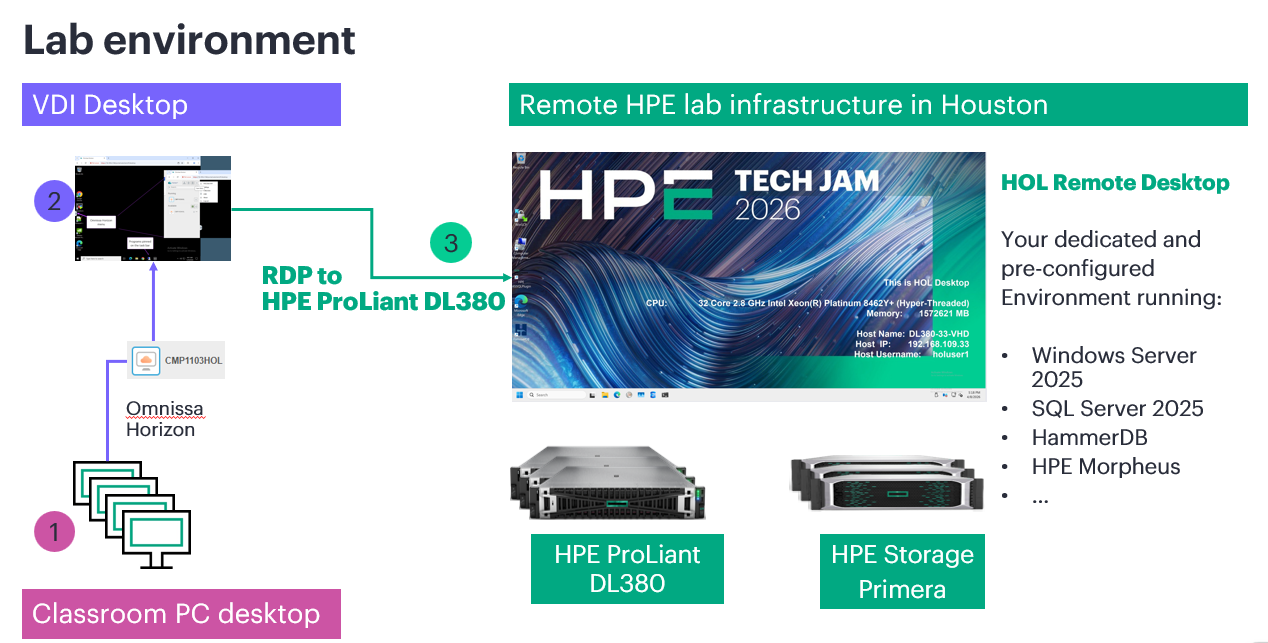
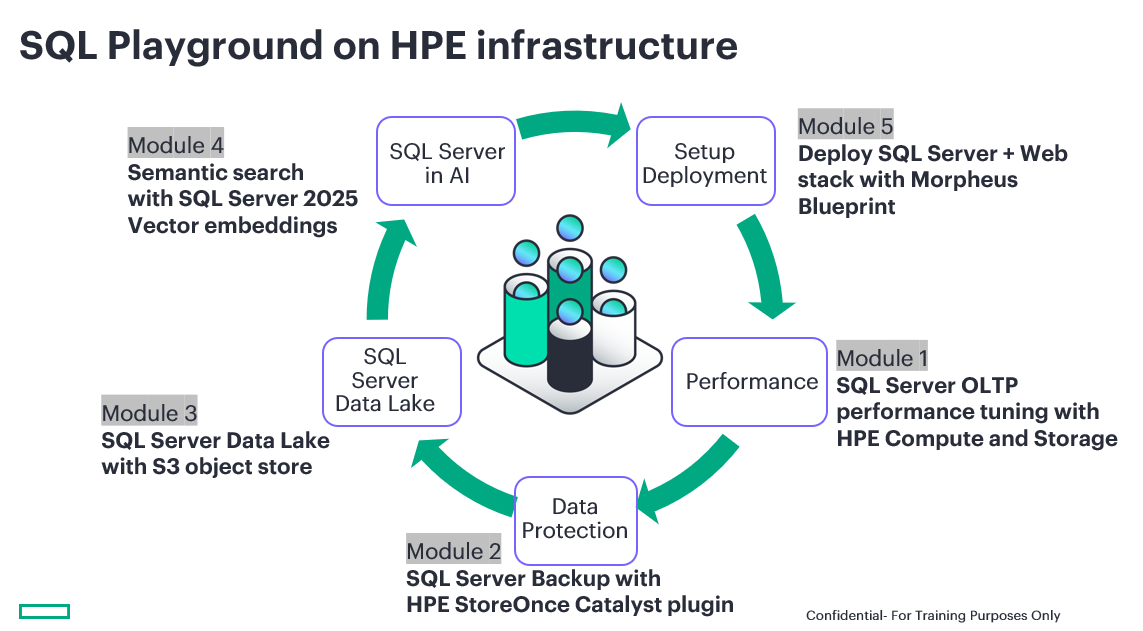
The hands on lab modules are designed to run on HPE ProLiant DL380 or DL380a Gen11 bare-metal servers with Microsoft Windows Server 2025 and SQL Server 2025. The following modules are available for selection, allowing flexibility based on your objectives and time constraints.
-
Module 1: Performance - Achieve best OLTP performance
Estimated time: 1 hour 30 minutesUse SQL Server on bare metal HPE ProLiant Server and Primera storage and software to tune iLO/BIOS and SQL Server database including storage parameters to achieve best OLTP performance on the given configuration.
-
Module 2: Data Protection - HPE StoreOnce Catalyst Plug-in for SQL Server
Estimated time: 40 minutesProtect (backup) Microsoft SQL Server to HPE StoreOnce with HPE Catalyst plugin for SQL Server
-
Module 3: Data Lake - Microsoft SQL Server Data Lake with Alletra MP X10000 use cases
Estimated time: 30 minutesSetup SQL Server data lake with external table feature and S3 object storage like HPE Alletra MP X10000
-
Module 4: SQL Server in AI - Getting started with SQL Server 2025 Vector Search
Estimated time: 20 minutesIntroduction to SQL Server 2025 and its new Vector Search capabilities on HPE ProLiant Server
-
Module 5: Set up deployment - Deploy Microsoft SQL Server web stack with HPE Morpheus Blueprint
Estimated time: 45 minutesThis last module uses a completely different environment and focuses on HPE Morpheus blueprint. It introduces HPE Morpheus blueprints for orchestrating end‑to‑end SQL Server and application stack deployments.
Getting started with this hands-on lab
Connect to HOL guide platform
From the classroom desktop computer, access the portal that allows you to select the manuals for the modules you are interested in. This will guide you through the hands-on lab with an AI assistant that you could query in case of needed.
-
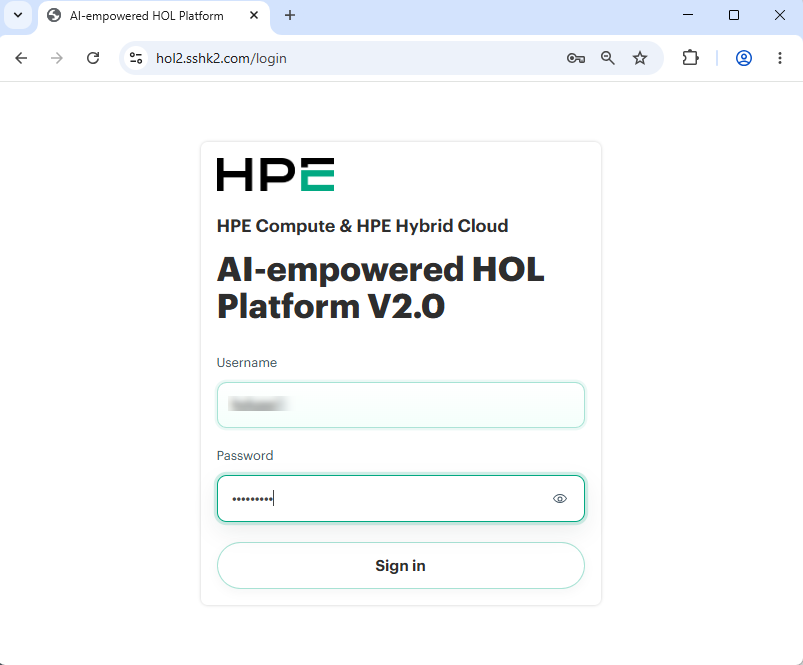
Go to https://hol2.sshk2.com
-
Enter your credentials according to the login sheet that was given by your instructors, and click on Sign in.
-
This will first open the HPE COMPUTE & HYBRID CLOUD HPE HOL Platform Home page with its HOL intro lab guide. This guide walks you through the introduction and explains how to connect to the remote infrastructure.
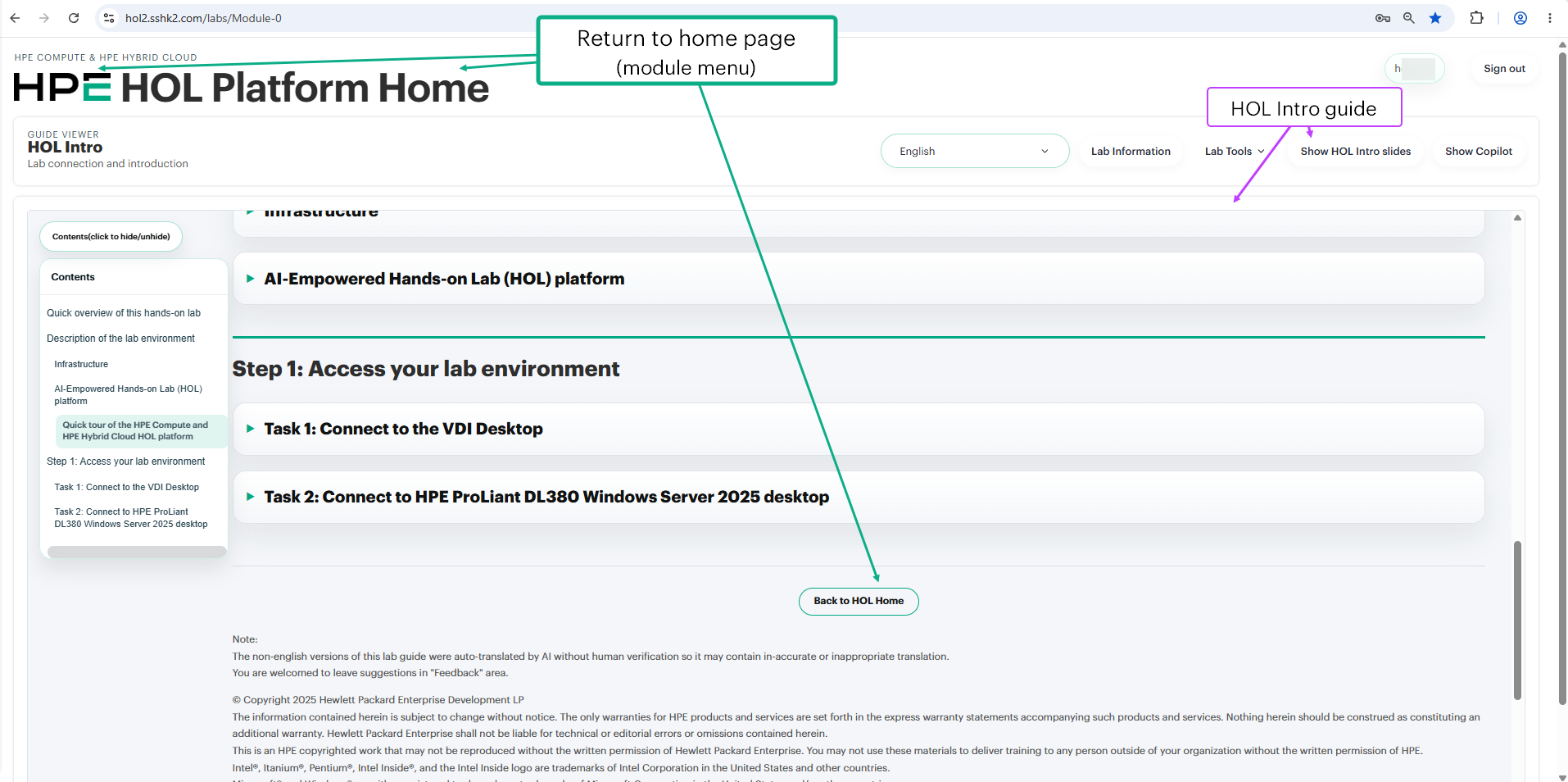
Be sure to start with 0 Intro connection guide to establish connectivity to the lab environment.The screenshot below shows how the page appears (this is the actual Module 0 – HOL Intro Lab connection and introduction -guide). Please review the available options on the page, with particular attention to the top menu bar. Note that the menu is contextual and may vary depending on the module guide you are using.
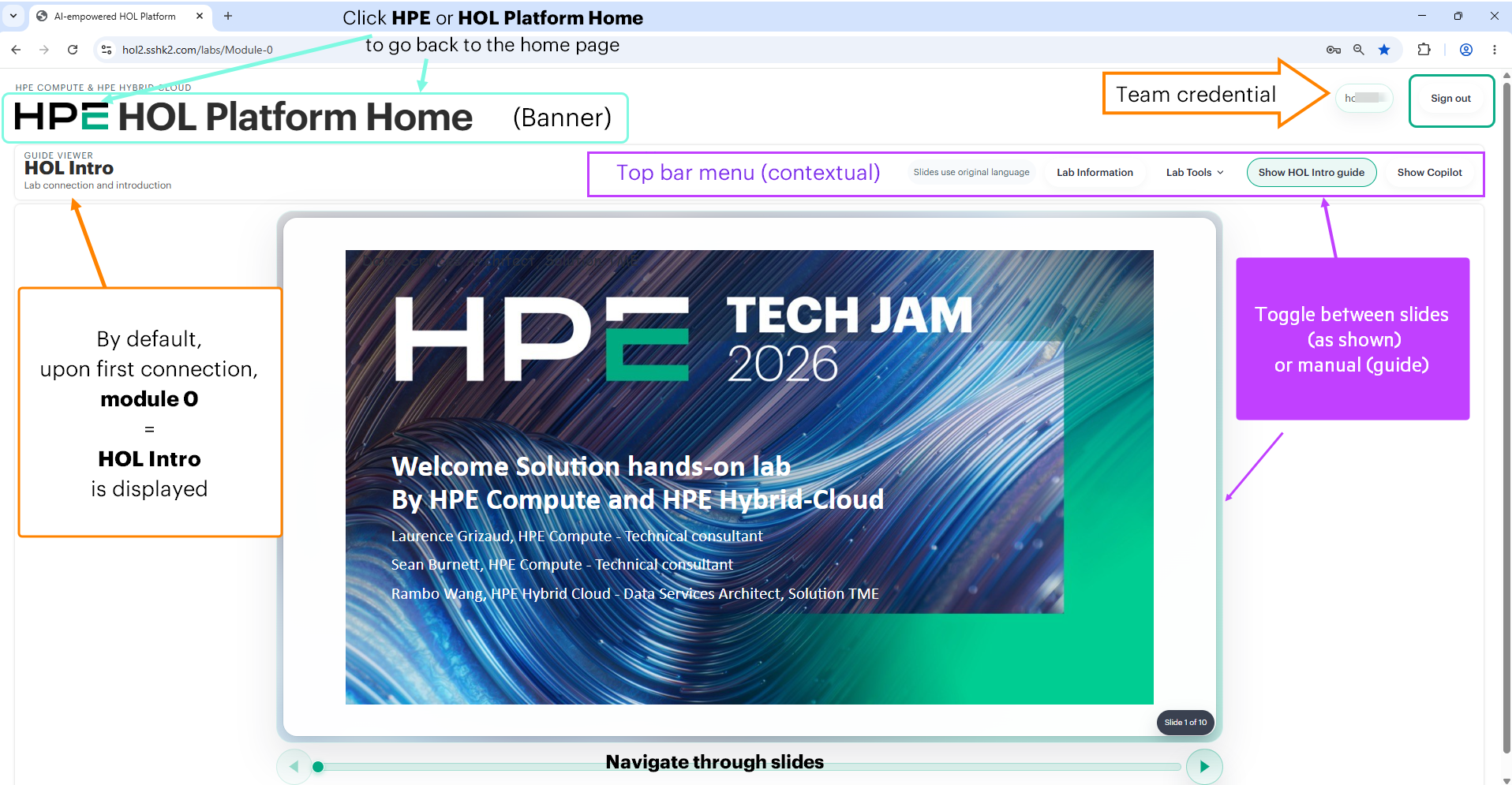
The banner which includes the HPE logo HOL Platform Home takes you back to the homepage, where you can navigate and select the module(s) to run next; it is equivalent to the clickable button at the end of the HOL Intro guide entitled Back to HOL Home.
-
Use either one, once you have connected to the remote infrastucture, and pick the next module you would like to learn.
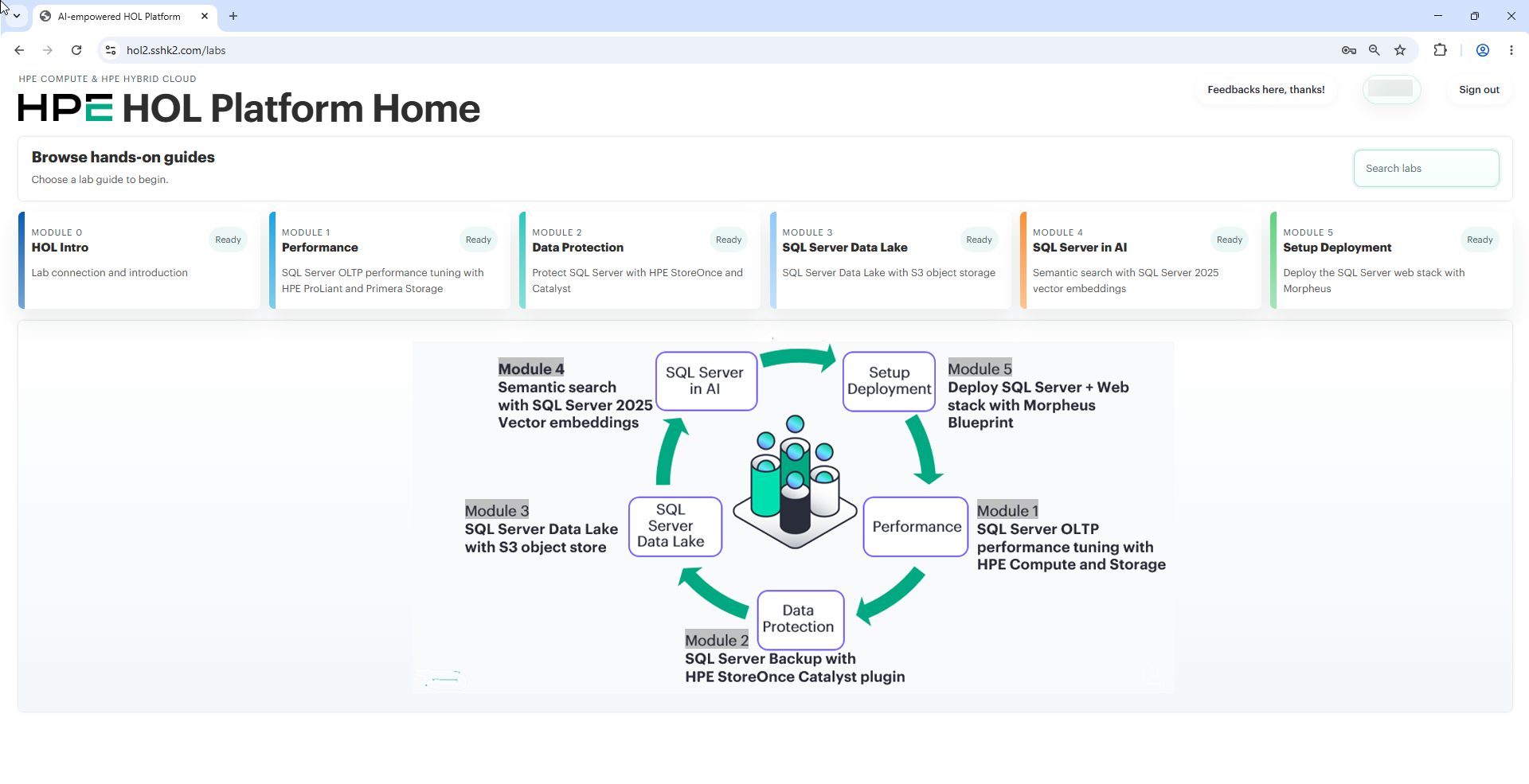
- Clicking a module opens a new page displaying either the guide or slides (depending on the module). If both are available, you can choose which format to use.
-
If the guide is displayed:
- The left pane contains the table of contents
- The center pane displays the instruction guide content
- The right pane, if you select Show Copilot from the top menu, provides access to the AI assistant
On top, you can see some options that may ease your experience:
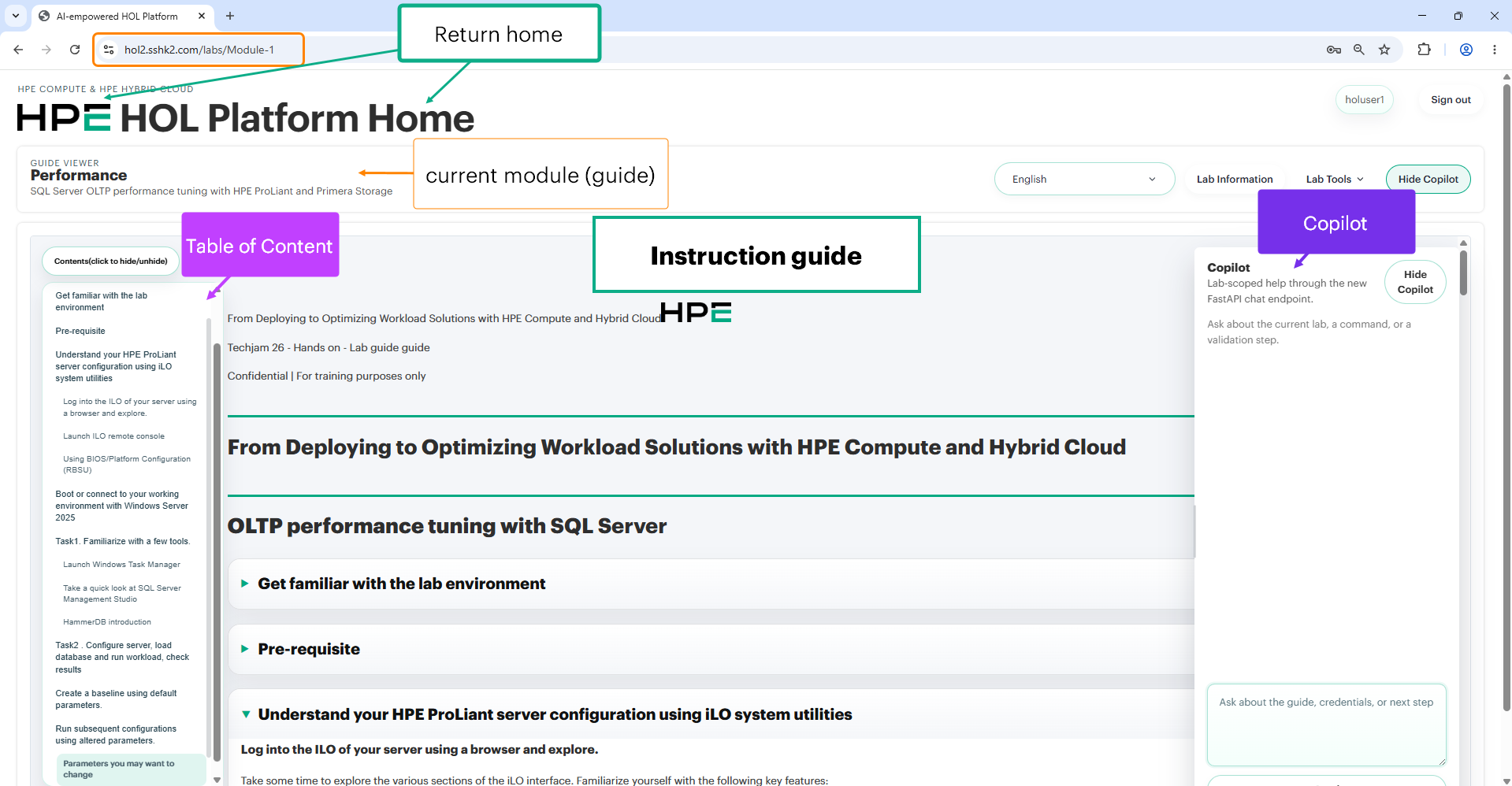

For example, for each module:
-
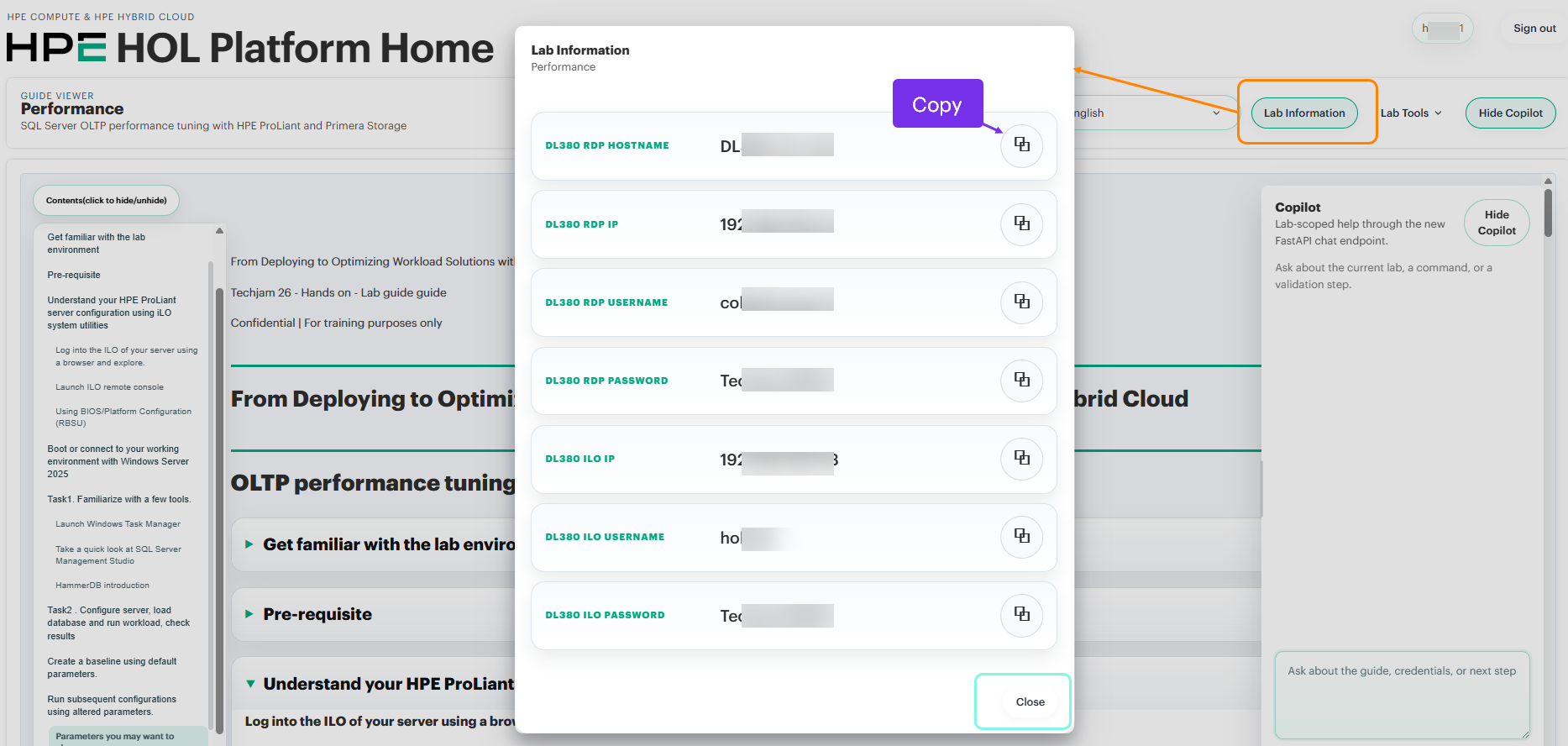
Lab information — Click to reveal the credentials you may need during the lab. A popup will appear with your information; use the copy button (overlapping squares icon) next to each value to copy it.
-
Show/Hide Copilot — Toggle button to show (or hide Copilot), and ask any question related to the module you are working on.
💡 Tip:
For a better experience, we recommend the following setup:
- Use your secondary monitor (portrait orientation) to display the HOL guide.
- Move the page you want to read or follow instructions on to this monitor.
- Keep your primary monitor in landscape orientation for active tasks.
Your primary display is usually the main monitor you use for work, while your secondary display refers to an additional monitor that can be set up vertically (portrait orientation).
- At the end, please use the Sign out button (top right corner).
Thank you for your interest and participation.